Back to Blog
wordpressapibloggingschedulingautomation

How to Schedule WordPress Posts via the REST API (Application Passwords, status: future)

M
Mel Owen
7 min read

WordPress is the one platform on this list that already does scheduling well. It shipped it years ago, it works from the block editor, and it works from the REST API with a single field. The catch is not the scheduling itself, it is the two things nobody explains clearly: how the native scheduler actually fires under the hood, and how to authenticate an external app so you can automate it instead of clicking "Schedule" by hand every time.

This is the complete flow: what native scheduling really does, how to schedule posts programmatically with the REST API, how application passwords work since they became a core feature, and where wordpress.com breaks from everything you just learned about self-hosted WordPress.

What you need

  • A self-hosted WordPress site (wp-org, not wp-com) on version 5.6 or later, since that is when application passwords shipped in core.
  • An admin or editor account with permission to publish or schedule posts.
  • HTTPS enabled. Application passwords are disabled by default over plain HTTP.
  • Fifteen minutes to generate a password and make one test request.

If you are on wordpress.com's hosted service instead of self-hosted WordPress, skip ahead, because the auth model is different and covered below.

Native scheduling, and the WP-Cron caveat that bites people

In the block editor, the Publish panel has an "Immediately" field. Click it, pick a future date and time, and the button changes from "Publish" to "Schedule." That is genuinely all it takes. WordPress stores the post with a future status and a post_date in the future, and it just works, most of the time.

The gotcha is what makes it fire. WordPress does not run a real system cron job by default. It uses WP-Cron, which is a pseudo-cron that only checks for due tasks, including scheduled posts, when a visitor loads a page on your site. On a busy blog that is invisible, because pages load constantly. On a low-traffic site, a post scheduled for 6am can sit unpublished until the first visitor shows up at 9am, because nothing triggered the check.

Most managed WordPress hosts replace WP-Cron with a real server cron job, so this rarely bites you there. On budget or self-managed hosting, it is a real and commonly reported failure mode: scheduled posts that silently go out late, not because scheduling is broken, but because nothing woke the site up to check. If your published-on-time rate matters, this is worth confirming with your host rather than assuming.

Scheduling through the REST API: status "future" plus a date

The REST API mirrors the editor exactly. A single POST to the posts endpoint creates or schedules a post:

POST /wp-json/wp/v2/posts

The status field accepts publish, future, draft, pending, or private. To schedule, set status to future and give it an ISO-8601 date in the future:

{
  "title": "Your post title",
  "content": "<p>Post body as HTML.</p>",
  "status": "future",
  "date_gmt": "2026-08-01T14:00:00"
}

That is the entire schedule mechanism. No separate scheduling endpoint, no cron table to manage yourself, no polling loop on your end. You send one request with a future date and a future status, and WordPress's own WP-Cron (or your host's real cron replacement) handles the rest, with the same caveat above about low-traffic sites.

Want to publish immediately instead of scheduling? Set status to publish and drop the date, or set the date to now. Want a draft your team can review before it goes anywhere? status: "draft" does that with no date required at all.

Application passwords: core since WordPress 5.6

Before WordPress 5.6, hitting this API from an external app meant installing a third-party auth plugin. Since 5.6, application passwords are a core feature, no plugin required.

Here is what makes them different from your login password:

  • They are generated per user, not per site. Each user creates their own from their profile page.
  • Each one is shown exactly once at creation time. If you lose it, you generate a new one, you cannot retrieve the old one.
  • They are scoped to the REST API only. An application password cannot be used to log into the wp-admin dashboard itself.
  • HTTPS is required by default. WordPress will not let you use application passwords over an unencrypted connection unless a site owner has explicitly overridden that, which most hosts do not.

To generate one, go to Users, Profile, scroll to "Application Passwords," give it a name (name it after the app that will use it, not "test"), and click Add. Copy the string immediately, it will not be shown again.

Authenticate with HTTP Basic Auth, username plus the application password (spaces and all, WordPress strips them internally):

Authorization: Basic base64(username:xxxx xxxx xxxx xxxx xxxx xxxx)

That header on a POST to /wp-json/wp/v2/posts is the entire integration. No OAuth dance, no token refresh job, no app review process. This is the biggest practical difference between WordPress and platforms like Instagram or LinkedIn, where getting programmatic posting approved can take weeks. WordPress hands you a password from a settings page and you are done in minutes.

See how TimeToPost can help you implement these strategies.

wordpress.com is a different animal

Everything above is self-hosted WordPress (wordpress.org software, whether you host it yourself or through a managed host like WP Engine or Bluehost). wordpress.com, the hosted service run by Automattic, runs its own separate REST API with its own auth model.

Instead of application passwords, wordpress.com requires OAuth2. You register an application, get a client ID and secret, and take a user through an authorization redirect to get an access token. It is closer to what you would build for Instagram or X than to the fifteen-minute application-password flow above. If your site lives on wordpress.com rather than self-hosted, budget real OAuth implementation time, not a quick settings-page password.

The practical upshot: "WordPress API" is not one thing. Check which WordPress you actually have before you plan the integration.

Pairing every article with a social calendar

Scheduling the post itself is the easy half. The part that eats time is everything downstream: remembering to promote the article on X and LinkedIn the same day, timing that promotion so it lands when your audience is actually online, and not letting the social side slip because you were focused on getting the article itself out the door.

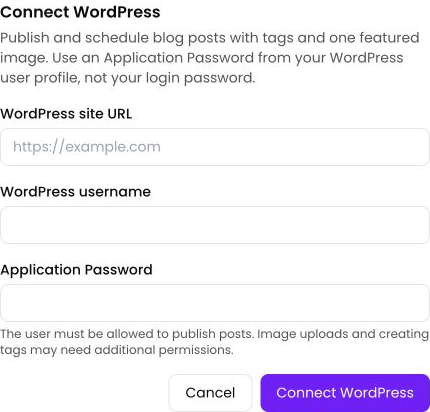
TimeToPost connects to your WordPress site as one more channel on the same calendar as your social accounts. Schedule the article for future status the way you always would, then schedule the promo posts for X, LinkedIn, Instagram, or Threads right next to it on the same timeline, so the article and its distribution go out as one coordinated plan instead of two separate to-do items you have to remember on different days. The character counter keeps your promo copy inside each platform's limit while you write it, and the posting schedule generator helps you lay out a week of publish-plus-promote pairs at once instead of planning post by post.

For the timing question itself, best-time data is genuinely different per platform and per audience: see our 2026 best-time-to-post breakdown rather than trusting one universal hour. And the full multi-platform calendar lives at /social-media-scheduler if you want to see how WordPress sits alongside everything else you post to.

FAQ

What happens if a scheduled post gets missed? On self-hosted WordPress, a missed schedule almost always traces back to WP-Cron never being triggered, usually on a low-traffic site with no visitor to wake it up. Most managed hosts replace this with a real server cron job specifically to avoid it. If you are seeing this regularly, ask your host whether they run WP-Cron on a real schedule or rely on page-load triggers.

Does the REST API require HTTPS? Yes, by default. Application passwords are disabled over plain HTTP unless a site administrator has explicitly enabled them anyway, which is not something most hosts allow out of the box.

What is the difference between a draft and a future-scheduled post? A draft has no publish date attached and sits until someone manually publishes it. A future-status post has a specific date_gmt in the future and will publish itself automatically at that time via WP-Cron, no manual action required.

Does this work the same on hosted wordpress.com sites? No. Self-hosted WordPress (wordpress.org software) uses application passwords and the flow described above. wordpress.com runs a separate API that requires OAuth2 app registration and a user authorization step, closer to a full social-platform integration than a fifteen-minute settings-page password.

Related posts

Put these strategies into action

TimeToPost helps you schedule content, track performance, and grow your audience โ€” all in one place.